Decrypt HTTPS and TLS Traffic with a Key Log File on Mac
Most traffic today is HTTPS, so a capture usually shows only encrypted Application Data. With a TLS key log file, TCP Viewer decrypts those packets and shows the HTTP requests and responses inside, just like Wireshark, in a few clicks.
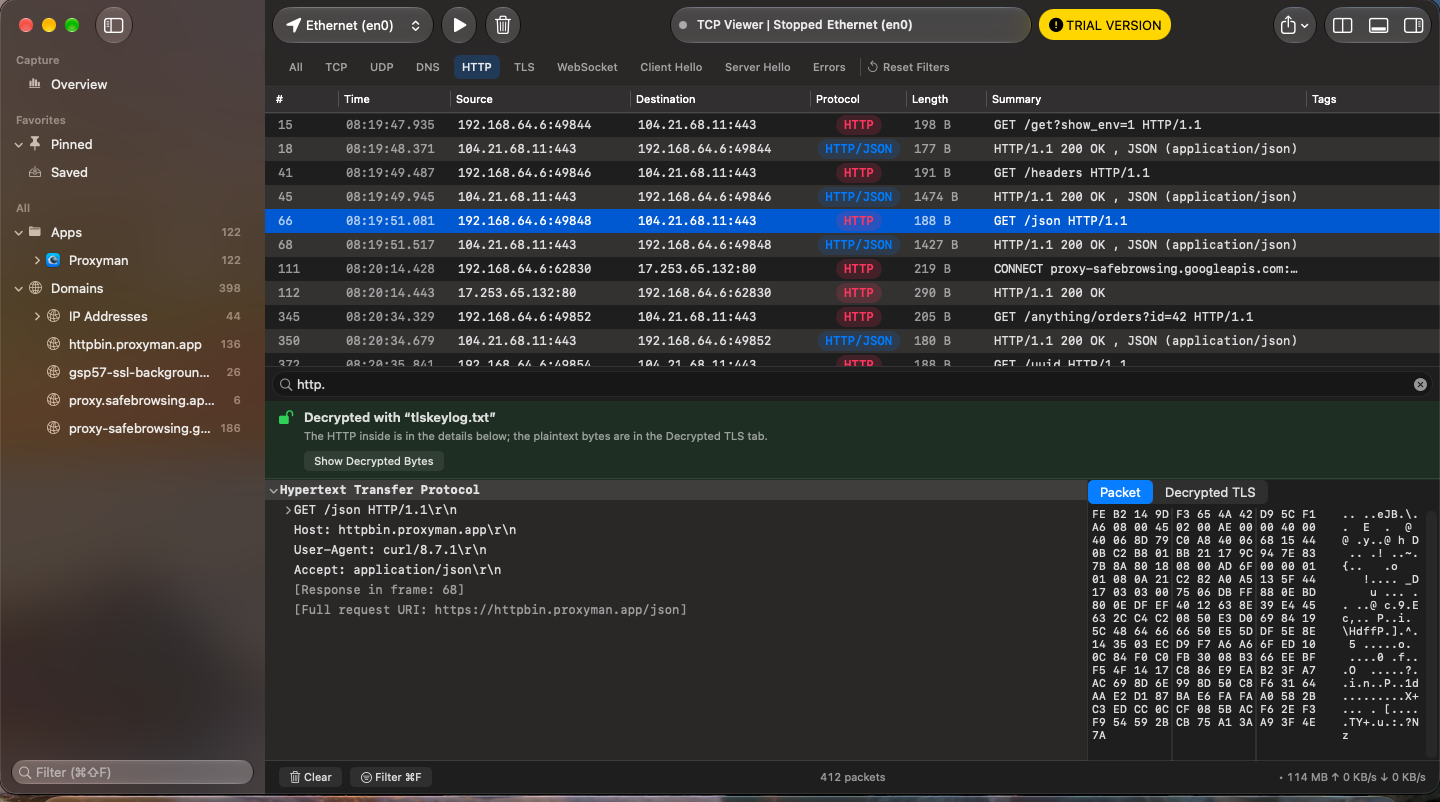
Decrypted packets show up as HTTP in the packet list, with their headers and body in the inspector.
1. What you need
A TLS key log file (also called an SSLKEYLOGFILE) holds the session keys of
the TLS connections an app made. These apps can write one:
- Proxyman: open Tools › TLS Key Logging…, turn it on, and choose a folder. See the Proxyman guide.
- Chrome, Firefox, curl, and other apps that honor the
SSLKEYLOGFILEenvironment variable.
TCP Viewer can only decrypt connections whose keys are in the file, and the capture must include the start of each connection (its TLS handshake).
2. Add the key log file
- Open Tools › TLS Decryption… (⇧⌘K). It opens Settings › TLS.
- Click Choose Key Log File…, or drop the file onto the window.
- TCP Viewer checks the file and shows how many TLS connections it can decrypt.
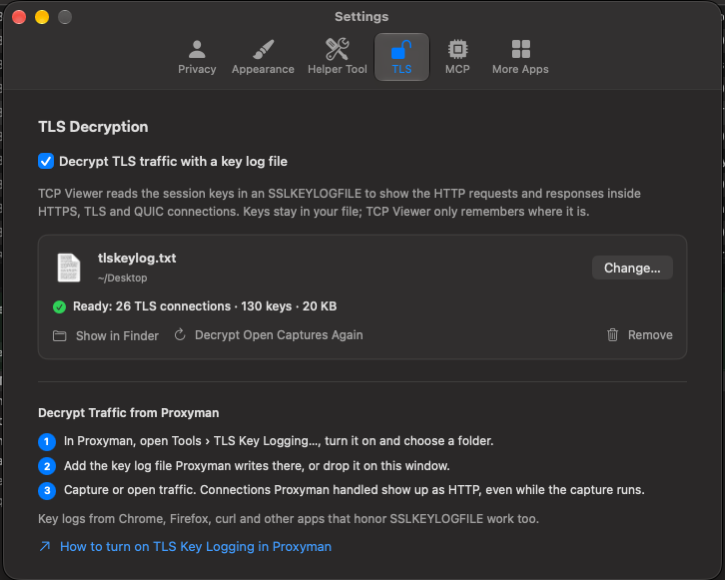
Open captures are decrypted again right away, and the setting applies to every capture you open later. You can also select an encrypted packet and click Add Key Log File… in the inspector.
3. Read the decrypted traffic
- The packet list shows HTTP rows with the method, URL, and status instead of Application Data. Use the HTTP filter to see only them.
- The inspector shows a green Decrypted with “your file” banner, and the HTTP headers and body appear in the packet details.
- Click Show Decrypted Bytes to read the plain-text bytes in the Decrypted TLS tab.
4. Live capture with Proxyman
Keep the key log file added and start a live packet capture. New HTTPS connections that Proxyman handles appear as HTTP while the capture runs. When you stop the capture, TCP Viewer decrypts any remaining connections whose keys arrived late.
5. If a packet is still encrypted
The inspector explains why with a yellow Not decrypted banner. Usually:
- The key log has no keys for that connection. Only traffic from the app that wrote the key log, such as Proxyman, can be decrypted.
- The capture started after the connection opened, so its handshake is missing. Capture again before the app connects.
- The keys were written after you opened the capture. Click Decrypt Again.
6. Privacy
TCP Viewer remembers only where the key log file is. It never copies, uploads, or logs the keys. Turn decryption off or remove the file anytime in Settings › TLS. Treat key log files like passwords and delete them when you are done.
7. Related pages
- Packet inspection
- Live packet capture
- Open capture files
- TCP Viewer MCP: ask an AI assistant to add a key log and read decrypted traffic.