View Network Endpoints in TCP Viewer
Endpoints groups a capture into apps, domains, addresses, and ports. It helps you answer simple questions such as which app sent the most data or which server received the most packets.
The window updates while a live capture is running. It also works with PCAP, PCAPNG, and TCP Viewer session files.
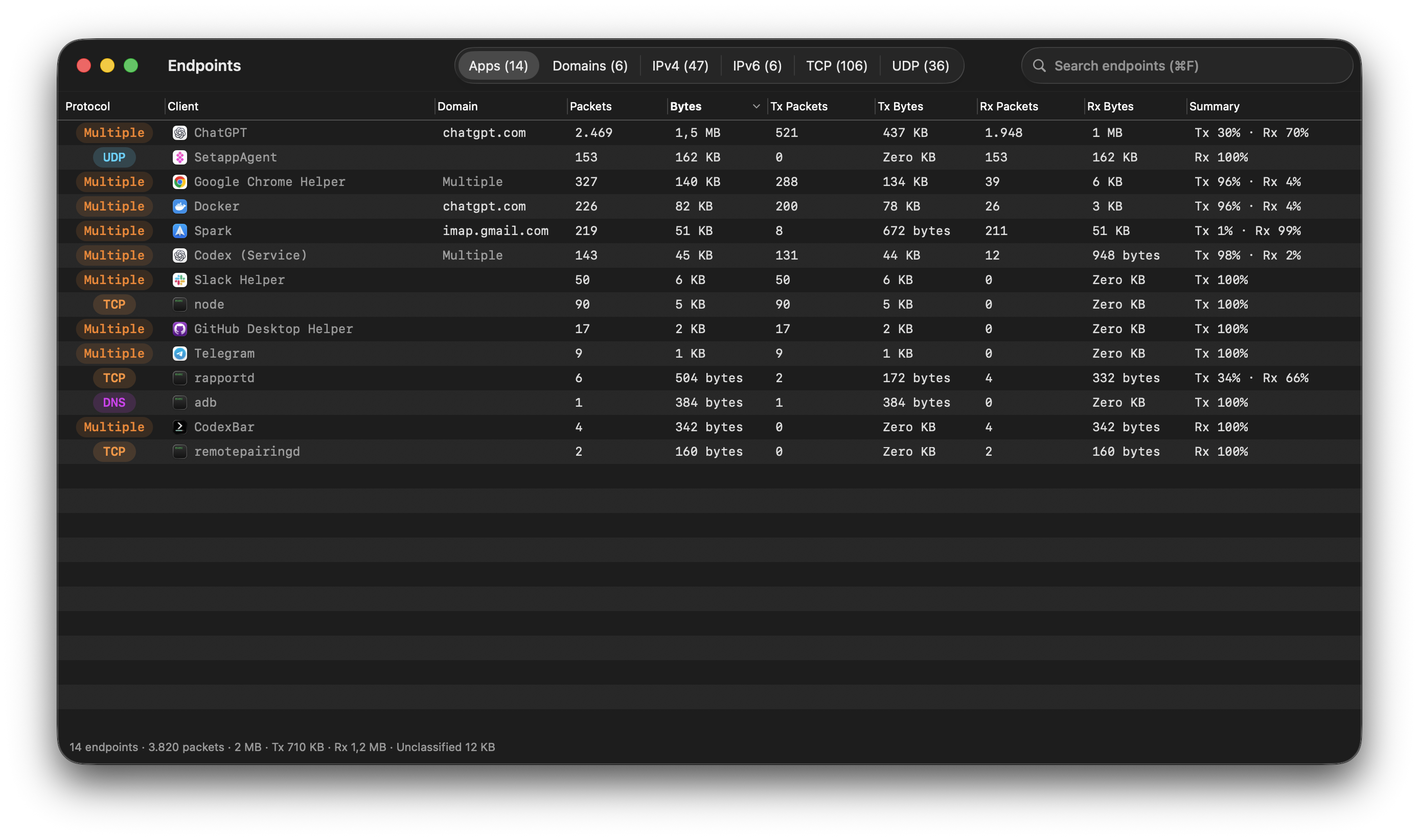
Compare endpoint traffic, then open the packets behind any row.
1. Benefits
- ✅ Group traffic by app, domain, IPv4 address, IPv6 address, TCP, or UDP.
- ✅ Compare packet and byte totals.
- ✅ Separate sent traffic from received traffic.
- ✅ Search and sort a large endpoint list.
- ✅ Open the packets related to an endpoint row.
- ✅ Copy a value or copy rows as CSV or JSON.
2. Open Endpoints
- Start a live packet capture or open a capture file.
- Select Overview in the sidebar.
- Select Endpoints… in the top-right corner.
You can also choose View → Statistics → Endpoints… from the menu bar.
3. Choose an endpoint type
Use the tabs at the top of the window:
| Tab | What it groups |
|---|---|
| Apps | Packets from each identified Mac app or process. |
| Domains | Packets linked to each resolved domain. |
| IPv4 | Source and destination IPv4 addresses. |
| IPv6 | Source and destination IPv6 addresses. |
| TCP | TCP addresses and ports. |
| UDP | UDP addresses and ports. |
The number beside each tab is the number of endpoints found for that type.
4. Understand the columns
Each tab shows the columns that fit that endpoint type. Common columns include:
- Packets and Bytes show the total traffic for the row.
- Tx Packets and Tx Bytes show traffic sent from the Mac.
- Rx Packets and Rx Bytes show traffic received by the Mac.
- Summary shows the sent and received share.
- Client, Domain, Address, Port, and Protocol show what TCP Viewer found for the endpoint.
Multiple means that more than one value belongs to the row. For example, one app may use several protocols or domains.
Select a column heading to sort the table. Right-click the headings to show, hide, or reset columns. TCP Viewer remembers a separate column layout for each endpoint type.
5. Find and open related packets
- Enter an app, domain, address, port, or protocol in Search endpoints.
- Select a row.
- Double-click a row, or right-click and choose Show Related Packets.
TCP Viewer returns to the main window and shows the packets behind the selected endpoint. Clear the endpoint filter in the packet view when you want to see the full packet list again.
The right-click menu can also copy one cell, an app, a domain, or an address. Select one or more rows and use Copy Selected Rows as CSV or Copy Selected Rows as JSON when you need the full row data.
6. Query endpoints through MCP or the command line
In 1.18.0, MCP's get_endpoint_statistics and the CLI's statistics endpoints
read endpoint data without opening this window. Both support all six groups,
search, sorting, pagination, and either the complete capture or a pane's
displayed packets.
Each result row includes an endpoint identifier that a pane update can use to show related packets. See TCP Viewer MCP or Command line for examples.