Organize and Customize Packets
Packet captures become hard to read when every row looks the same. TCP Viewer lets you keep important sources and packets close, add short notes, mark rows with colors, and choose the columns you need.
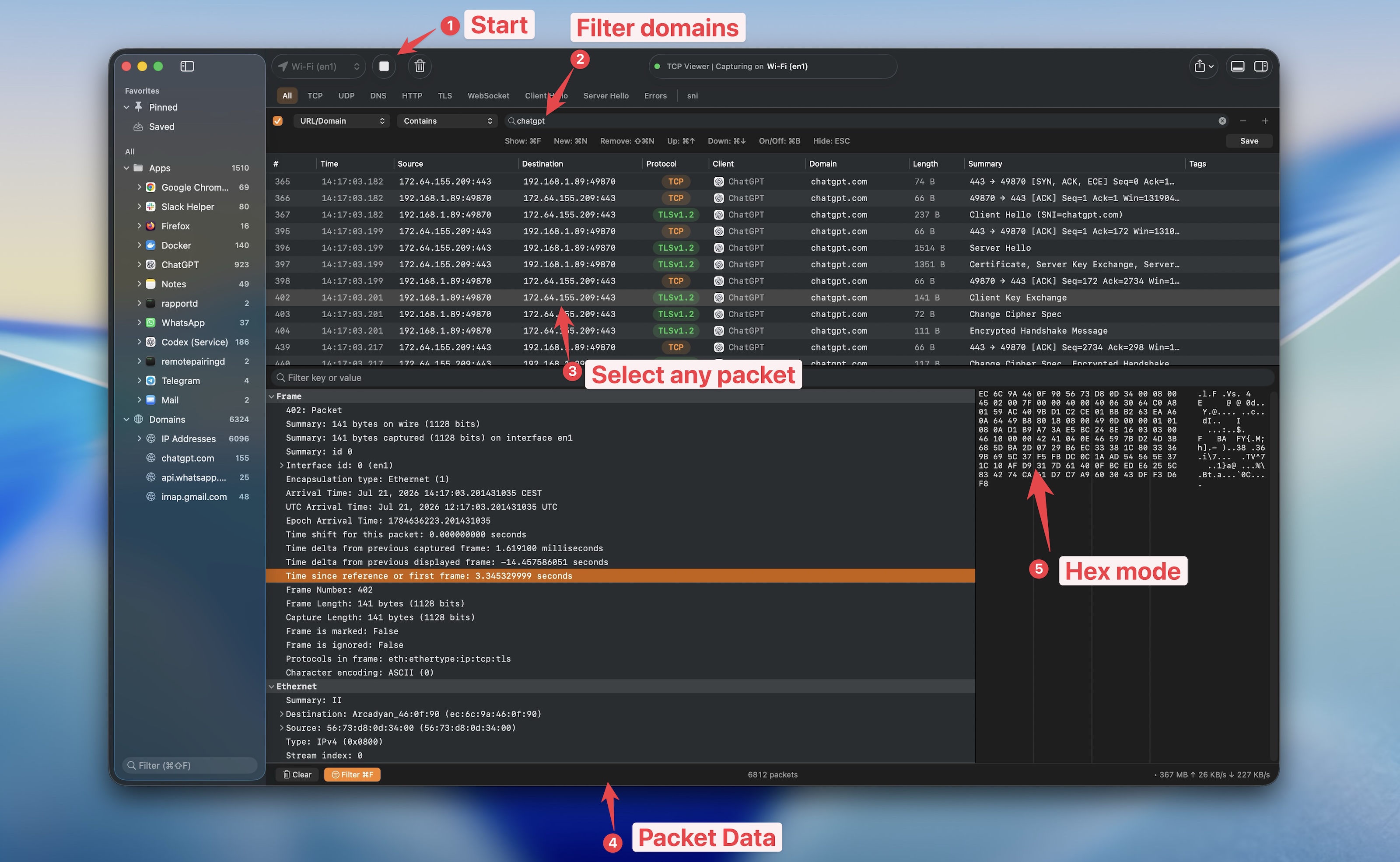
Use the sidebar and packet table to keep important traffic visible, then adapt the inspector and columns to the current task.
1. Benefits
- ✅ Pin an app or domain in the sidebar with TCP Viewer PRO.
- ✅ Save selected packets in a separate workspace.
- ✅ Add comments of up to 1,000 characters.
- ✅ Highlight rows with a color or add strikethrough.
- ✅ Show, hide, resize, and reorder table columns.
- ✅ Create a custom column from a decoded protocol field.
2. Pin an app or domain
- Find an app or domain in the sidebar, or select packets from that app.
- Right-click and choose Pin.
- Open Pinned near the top of the sidebar to return to it later.
Pinning is a PRO feature. Removing a pin removes only the shortcut, not the packets.
3. Save packets for a smaller workspace
- Select one or more packet rows.
- Right-click and choose Save.
- Select Saved in the sidebar.
This is useful when several packets from different apps or domains belong to the same investigation. You can delete a row from the saved view without clearing the full capture.
4. Add comments and colors
Select one or more rows, then open the context menu:
- Choose Add Comment… or press Command-L to add or edit a note.
- Open Highlight and choose a color. Command-1 through Command-9 provide quick color shortcuts for the first choices.
- Choose Strikethrough to mark a packet as reviewed or excluded.
- Choose Reset to remove the row style.
Comments appear in the Comment column. Colors and comments are kept in supported TCP Viewer save and export workflows. Use short notes that explain why a packet matters.
5. Customize the packet table
Right-click a column header to show or hide fields such as ports, stream ID, direction, TCP flags, process ID, bundle ID, interface, tags, and comments. Drag headers to reorder them and resize a column by dragging its edge.
To add a decoded field that is not built in, select it in the inspector, right-click, and choose Create Column. See Inspect packet details for the full steps.