Follow TCP and UDP Streams on macOS
A packet list shows when data crossed the network. Follow TCP Stream and Follow UDP Stream show what one connection or flow exchanged. TCP Viewer uses its bundled Wireshark engine to identify the selected stream, separate its two directions, and keep links to the source packets.
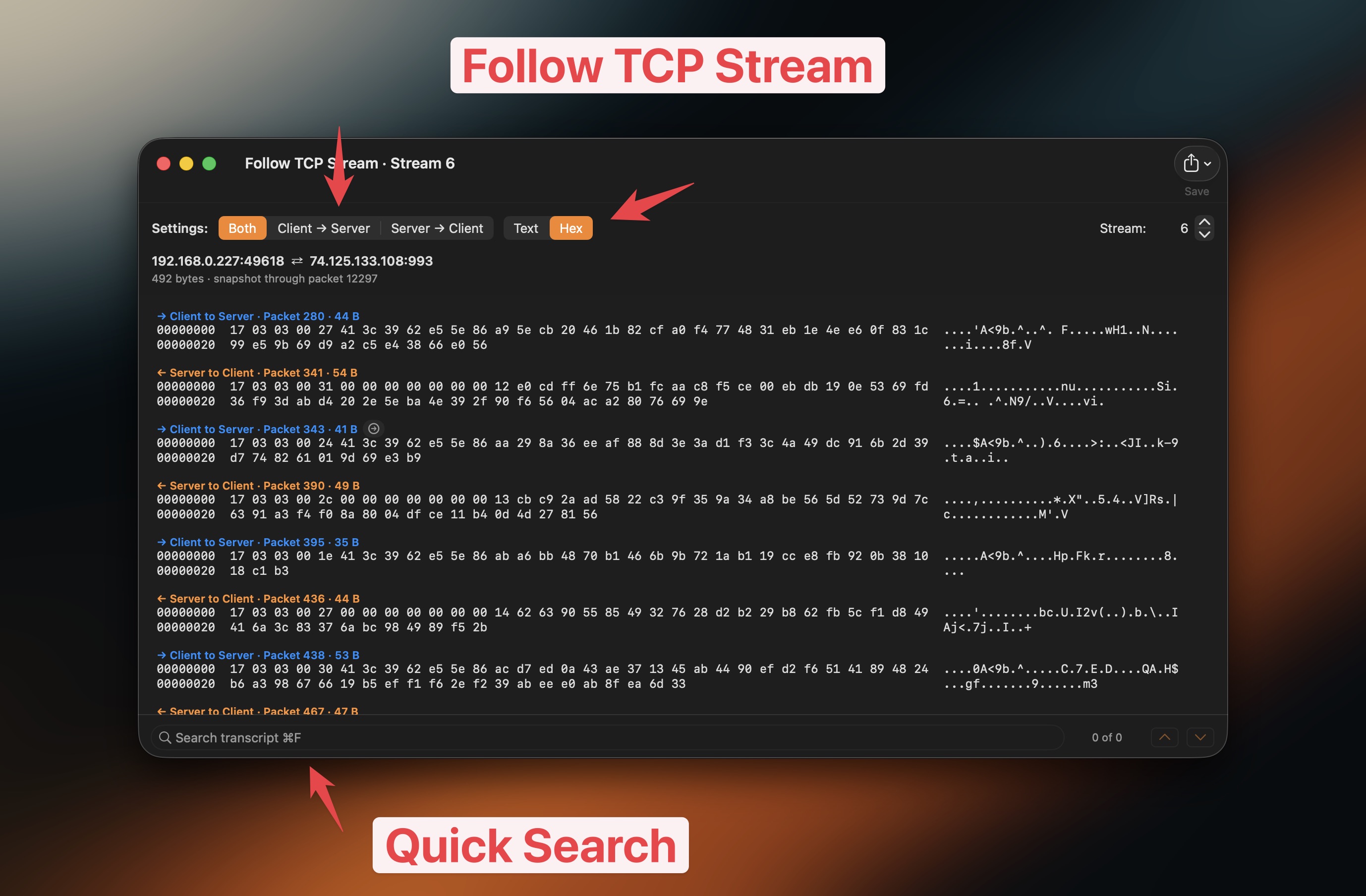
Use the same Follow window for TCP or UDP. Read Text or Hex, isolate either direction, and search without losing the source packets.
1. The problem
An application message rarely fits neatly into one captured packet. TCP bytes may be split across many packets, arrive out of order, or be retransmitted. UDP does not create a connection, but related datagrams can still form a request and response exchange across many rows. Reading each packet separately makes it hard to answer a basic question: what did the two endpoints exchange?
Follow TCP Stream rebuilds the payload into conversation order. Follow UDP Stream groups payloads from the selected UDP flow in capture order. Both views preserve packet numbers and direction labels, so you can move between the conversation and the packets that produced it.
2. Why follow a TCP or UDP stream
The controls follow the pattern Wireshark users know, inside TCP Viewer's native Mac window.
- ✅ Read a TCP conversation or UDP datagram exchange instead of scanning isolated rows.
- ✅ Distinguish Client → Server from Server → Client at every turn.
- ✅ Show both directions together or isolate one side of the exchange.
- ✅ Switch between readable Text and exact Hex bytes.
- ✅ Search the transcript with a match count and previous/next navigation.
- ✅ Move through other streams of the same protocol without closing the window.
- ✅ Return to a source packet and its matching bytes without losing the stream.
- ✅ Save the readable transcript or export either direction as raw bytes.
3. How to follow a stream
- Start a live packet capture or open a capture file.
- Select one TCP or UDP packet in the packet table.
- Right-click the row and choose Follow TCP Stream or Follow UDP Stream. TCP Viewer picks the command from the selected packet.
- Wait while TCP Viewer prepares the packet snapshot and builds the selected TCP or UDP stream.
- Read the stream in the separate Follow window while continuing to use the main capture window. The window title identifies the protocol and stream number.
The command is unavailable when the selection contains multiple packets or the selected row is not TCP or UDP. A Follow window represents a snapshot of the capture. For a live stream that receives more data later, open it again to create a newer snapshot.
4. Choose a direction and representation
Use the controls above the transcript:
- Both keeps the complete back-and-forth conversation together.
- Client → Server shows only bytes sent by the client.
- Server → Client shows only bytes returned by the server.
- Text displays printable content and replacement characters for binary data.
- Hex displays offsets, exact byte values, and an ASCII preview.
- The Stream stepper moves to the previous or next stream for the same protocol within the current capture. It does not switch between TCP and UDP.
Direction remains visible in the transcript labels, not by color alone. Packet numbers and byte counts help you understand where each turn came from.
5. Search and return to a packet
Press Command-F to focus Search transcript, then type the text or hex sequence you need. TCP Viewer shows the current match and total count. Use the up and down buttons to move between matches; navigation wraps at either end.
To inspect the capture behind a transcript record:
- Move the pointer over its Client to Server or Server to Client label.
- Click Show Packet.
- TCP Viewer selects the corresponding packet in the main table, scrolls it into view, and opens the matching byte source in the inspector.
A reassembled TCP record can contain bytes contributed by more than one captured frame. In that case, the complete Follow record may not match the raw Frame bytes of a single row. UDP records contain datagram payloads and do not have TCP sequence numbers. Use the byte selection in packet inspection to understand the relationship.
6. Save a transcript or raw bytes
Open the Save menu in the Follow window:
- Save Transcript… writes the currently rendered readable transcript.
- Export Client Bytes… writes the raw Client → Server payload.
- Export Server Bytes… writes the raw Server → Client payload.
Stream payloads can contain credentials, cookies, tokens, private host names, or application data. Review exported files before sharing them. See Save, copy, and export for capture-level export options.
7. Understand encrypted and partial captures
Follow Stream does not decrypt encrypted TCP or UDP payloads. TLS, QUIC, and DTLS traffic may look unreadable in Text while Hex still shows the exact ciphertext that crossed the network.
A stream or UDP exchange can also be partial when the capture started late, ended early, dropped packets, or reached a safety limit. Check the status below the endpoints before assuming the transcript contains the complete exchange.
Use packet filters to find the connection first, and use packet inspection when you need decoded protocol fields for one specific packet.
8. Follow streams through MCP or the command line
In 1.18.0, use MCP's follow_stream or the CLI's stream follow with a packet
ID to read its TCP or UDP conversation, including DNS traffic, without opening
a Follow window. Both support a target tab or pane, direction selection, and
text, hex, or base64 output.
MCP omits payload data while sensitive-data redaction is enabled. See TCP Viewer MCP and Command line for arguments, limits, and examples.