TCP Viewer Documentation
TCP Viewer is a native macOS app for capturing and reading network packets. It keeps the common parts of packet analysis easy while still showing detailed protocol fields powered by Wireshark libraries.
Use TCP Viewer when you want to see which apps are using the network, find the domain behind a connection, inspect a TCP or UDP packet, or share a capture with another developer.
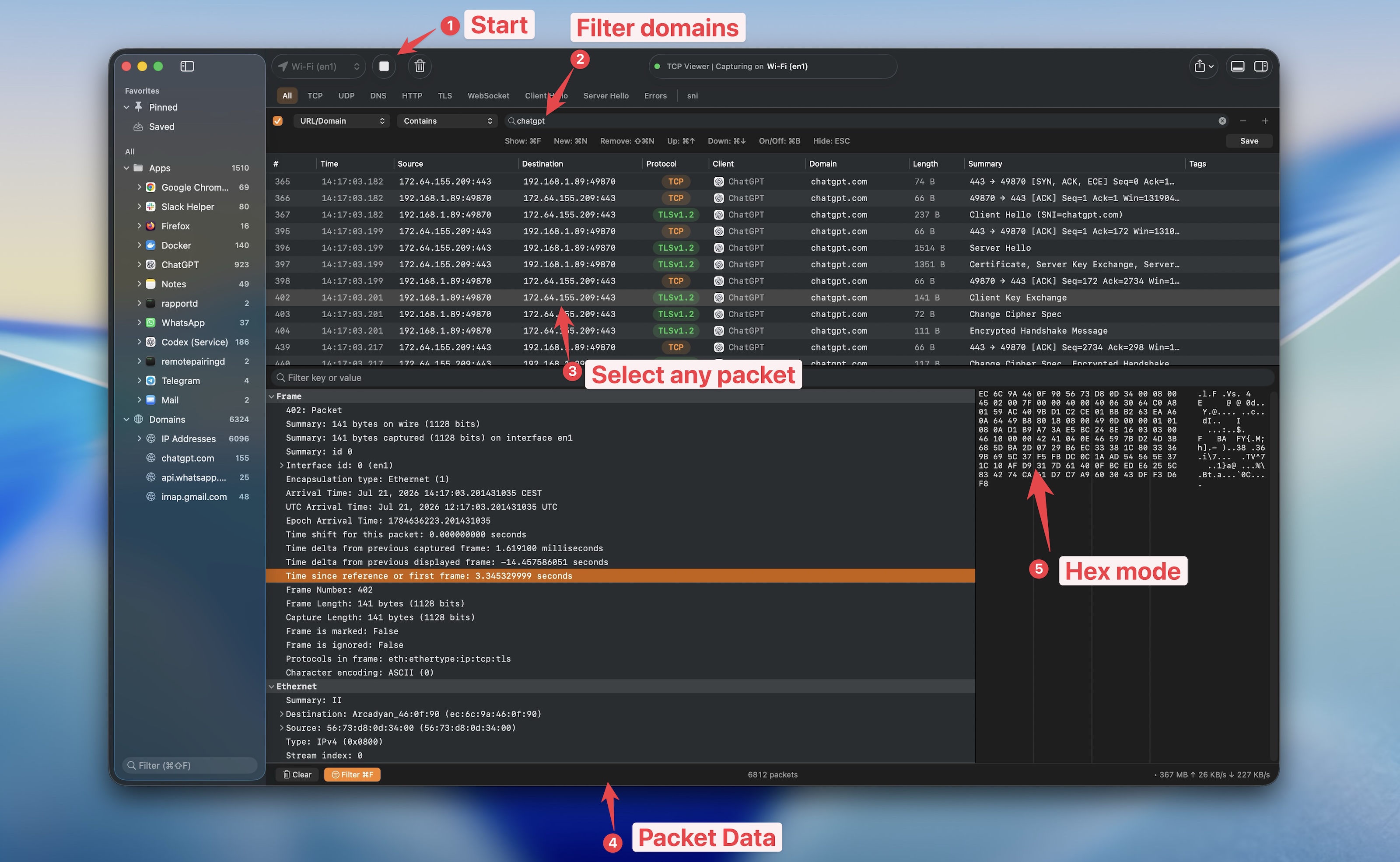
The native TCP Viewer workspace with app and domain groups, packet rows, decoded fields, and raw bytes.
1. What you can do
- ✅ Capture live TCP and UDP traffic from a network interface.
- ✅ Open existing
.pcap,.pcapng, and.tcpviewsessionfiles. - Keep separate packet views in tabs or compare two panes in Split View with TCP Viewer PRO.
- ✅ See traffic totals, protocols, top apps, domains, and IP addresses.
- ✅ Compare endpoints by packets, bytes, and traffic direction.
- ✅ Group traffic by Mac app, domain, or IP address.
- ✅ Filter by protocol, address, port, client, stream, and other packet fields.
- ✅ Read a decoded protocol tree and the matching raw bytes.
- ✅ Save, comment on, color, copy, and export the packets that matter.
- Ask an MCP client to manage tabs and panes, read statistics, and follow streams.
TCP Viewer is built for Apple silicon and requires macOS 15 or later.
2. Start your first capture
- Download TCP Viewer and move it to your Applications folder.
- Open the app. When asked, install the Helper Tool. The helper gives TCP Viewer access to macOS packet-capture devices without running the whole app as root.
- Choose an active network interface, such as Wi-Fi, from the toolbar.
- Select Start. Use the same button to pause, resume, or stop the capture.
- Select a packet to open its decoded fields and hex bytes.
The helper stays local. It manages capture permission and does not inspect, store, or upload your traffic. If you do not install it, you can still open and inspect saved capture files.
3. Find useful traffic
The window has three main areas:
| Area | What it shows |
|---|---|
| Sidebar | Apps, domains, IP addresses, imported files, pinned sources, and saved packets. |
| Packet table | Time, source, destination, protocol, client, domain, length, summary, and other columns. |
| Inspector | Decoded protocol fields and the raw bytes for the selected packet. |
Start with the sidebar when the capture is busy. Select an app or domain to limit the table to that source. Then use a protocol chip such as DNS, TLS, or Errors. Press Command-F when you need a more exact filter.
4. Live captures and capture files
A live capture reads new packets from the selected interface. You can pause it without losing the packets already collected.
A capture file is a saved snapshot. Double-click a .pcap, .pcapng, or
.tcpviewsession file in Finder, drag it onto TCP Viewer, or open it from the
File menu. File analysis uses the same sidebar, packet table, filters, and
inspector as a live capture.
5. Where to go next
- Capture live traffic
- Open capture files
- Work with tabs
- Compare packets in Split View
- Use Capture overview
- View endpoint statistics
- Group traffic by app and domain
- Filter packets
- Inspect packet details
- Automate with MCP
- Use the command line
- View all main features
- Compare TCP Viewer with other network tools
For bugs and feature requests, open a GitHub issue. For a license or private support question, email tcpviewer@proxyman.com.