
How to open pcap and pcapng file on macOS
Learn what pcap and pcapng files are, how to capture them from the macOS command line, and how to open them with TCP Viewer.
 Proxyman TeamJune 10, 20263 min read
If you work on network bugs, someone may send you a .pcap or .pcapng file and ask you to check what happened. These files can look a little scary at first, but they are just packet capture files.
On macOS, you can capture them from Terminal, then open them in TCP Viewer to inspect packets, filter traffic, and understand the network flow.
What is pcap or pcapng
A pcap file is a saved network capture. It stores packets that moved through a network interface, such as Wi-Fi, Ethernet, or a local app connection.
A pcapng file is the newer packet capture format. It can store the same packet data, but it can also keep extra details, such as interface information and metadata.
In simple words:
.pcapis the classic packet capture file..pcapngis the newer packet capture file.- Both can help you debug DNS, TCP, UDP, TLS handshakes, failed connections, slow APIs, and strange network behavior.
Because these files can include real traffic, treat them like private logs. Do not share a capture file unless you know what is inside it.
How to capture it with command line
macOS includes tcpdump, so you can create a packet capture from Terminal.
First, list the network interfaces:
tcpdump -D
For most Wi-Fi captures, the interface is often en0. Your Mac may be different, so check the list first.
To capture a classic .pcap file:
sudo tcpdump -i en0 -w ~/Desktop/capture.pcap
To capture a .pcapng file on macOS:
sudo tcpdump -i en0 --apple-pcapng -w ~/Desktop/capture.pcapng
Press Control-C when you want to stop the capture.
You can also make the capture smaller by filtering it. For example, this only saves traffic for one host:
sudo tcpdump -i en0 host example.com -w ~/Desktop/example.pcap
Small capture files are easier to open, search, and share. If you are debugging one app or one server, capture only the traffic you need.
Video placeholder: Add a short terminal recording here showing
tcpdumpcreating a capture file.
How to open it with TCP Viewer
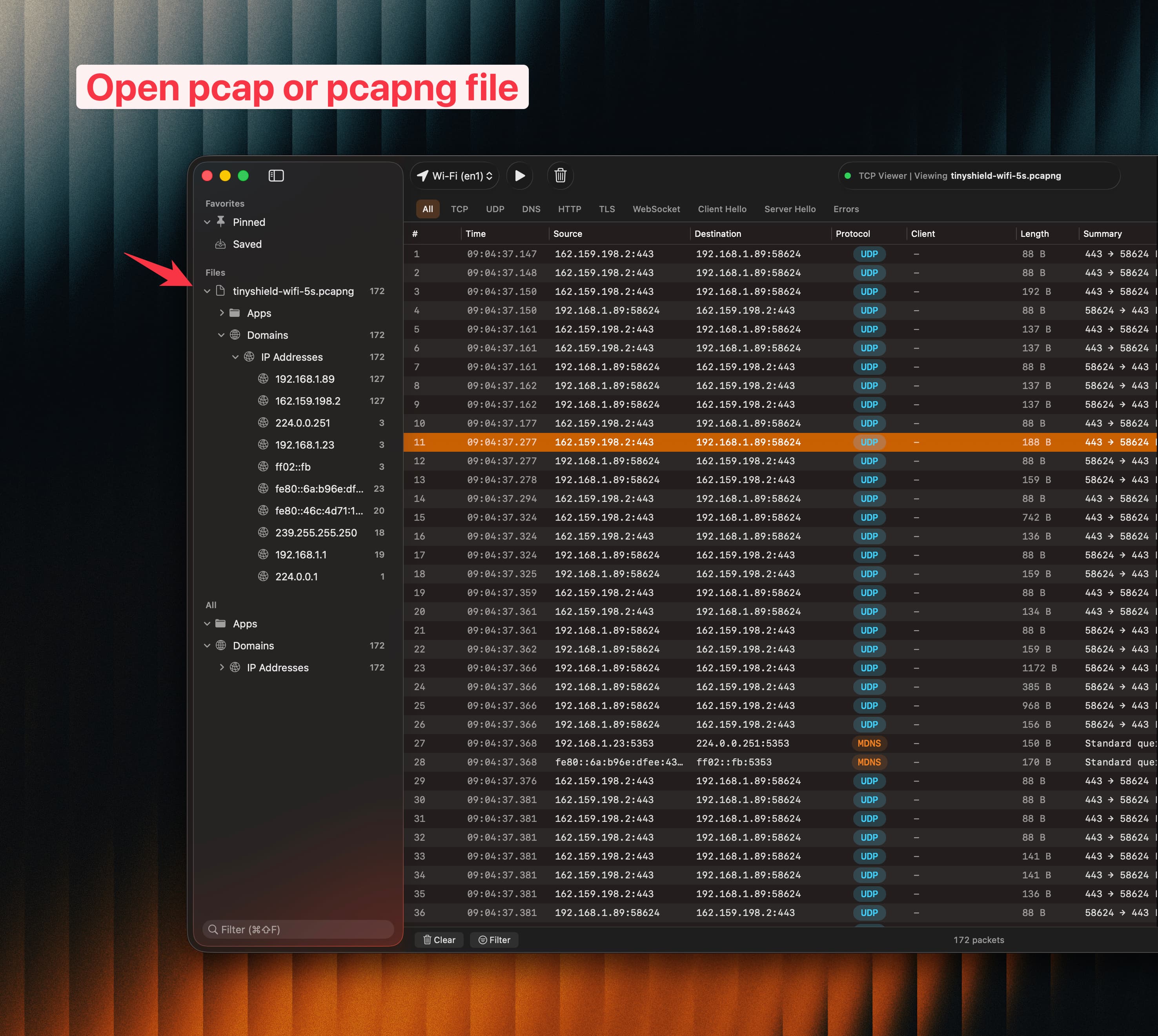
Once you have a .pcap or .pcapng file, open TCP Viewer on your Mac.
You can drag the capture file into TCP Viewer, or use the app menu to open the file. TCP Viewer will load the packets and show them in a readable list.
From there, you can:
- Search and filter noisy traffic.
- Check source and destination IP addresses.
- Look at ports, DNS requests, TCP connections, and packet timing.
- Inspect packet details without setting up a heavy workflow.
- Reopen saved captures later when you need to review the same issue.
If TCP Viewer is installed, you can also try opening a capture from Terminal:
open -a "TCP Viewer" ~/Desktop/capture.pcapng
That is the full flow: capture the traffic, save it as .pcap or .pcapng, then open it with TCP Viewer for a cleaner macOS packet viewer experience.
Bottom line
Use tcpdump when you need a quick packet capture from the command line. Use TCP Viewer when you want to open a pcap or pcapng file on macOS and inspect it in a simple native app.
For many Mac developers, this is enough to answer the first important question: what did my app actually send or receive on the network?
Open your capture with TCP Viewer
Download TCP Viewer for macOS and drag in your PCAP file. Then follow our guide to analyzing a PCAP file step by step.